Welcome to CutCut
CutCut is a quiet kind of app. It doesn't want to keep you scrolling, doesn't want to grab your attention, and certainly doesn't want to sell you anything. Instead, it wants to give you something most apps actively try to take away: time to think.
This guide walks you through everything CutCut can do. If you're new, read it top to bottom. If you've been using CutCut for a while, treat it as a reference: jump to the section you need, ignore the rest.
The Philosophy Behind CutCut
We live in a world that's relentlessly designed to make us buy. Every social feed, every targeted ad, every "limited time" countdown is engineered to bypass the part of your brain that thinks and activate the part that reacts. The result: we buy things we don't need, regret a surprising share of those purchases, and end up feeling worse — financially and emotionally.
The good news? You don't need more willpower. You need more time.
CutCut is built on a simple, well-documented insight: most impulse purchases lose their appeal once the impulse passes. That excitement you feel at 11 PM watching a TikTok ad? It's almost always gone by Tuesday morning. CutCut isn't here to lecture you, shame you, or stop you from buying anything. It's here to put a small, deliberate pause between you and the checkout button — long enough for the impulse to fade and your real preferences to surface.
Getting Started: Your First Five Minutes
When you open CutCut for the first time, you'll go through a short onboarding that lets you set your currency, your hourly working wage (used for the Effort Cost tool later), and your preferred waiting rules. You can change all of these later in the More tab — nothing you pick now is permanent.
Once onboarding is done, you'll land in one of three tabs at the bottom of the screen:
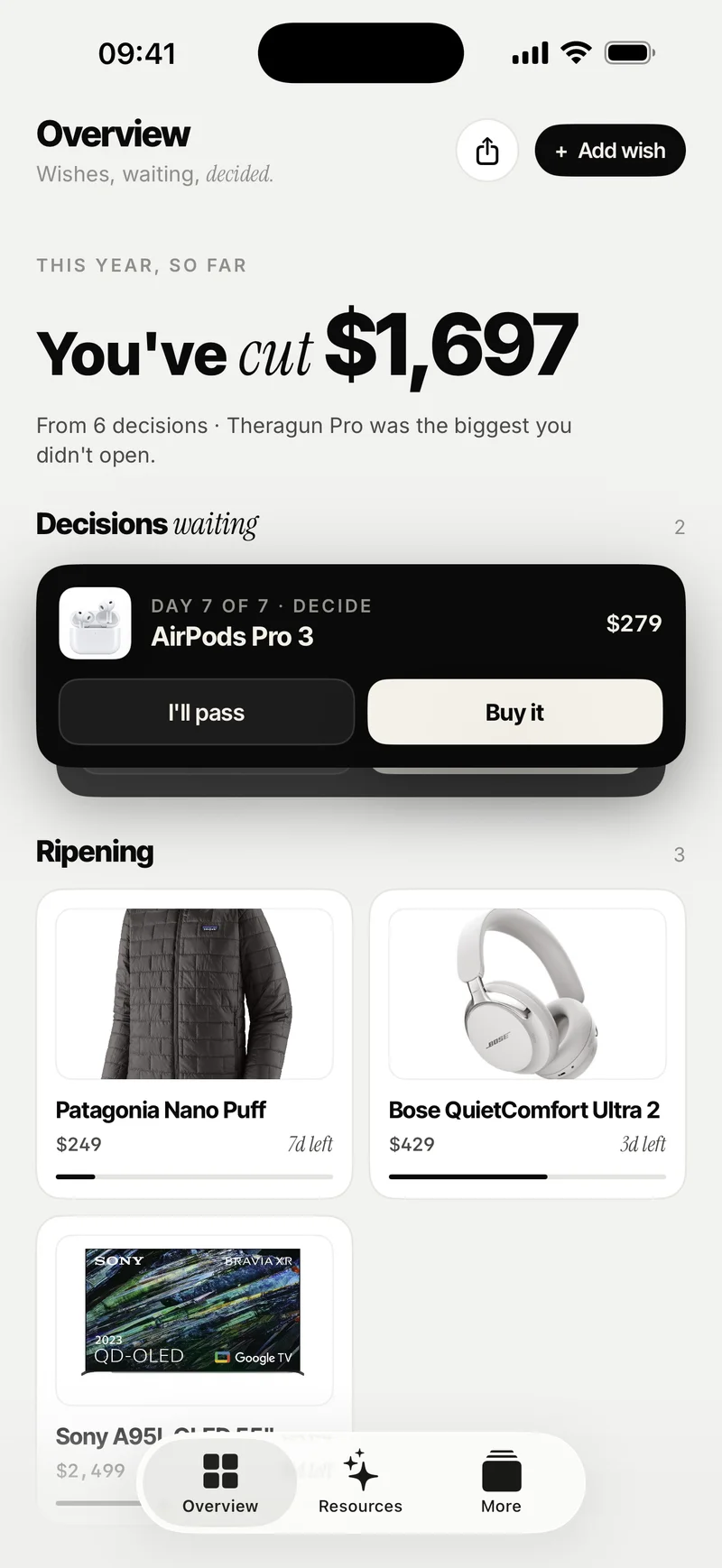
- Overview — Your wishlist. This is where waiting items live and where you'll spend most of your time.
- Resources — Where the Circuit Breaker, the Guides library, and the calculators live.
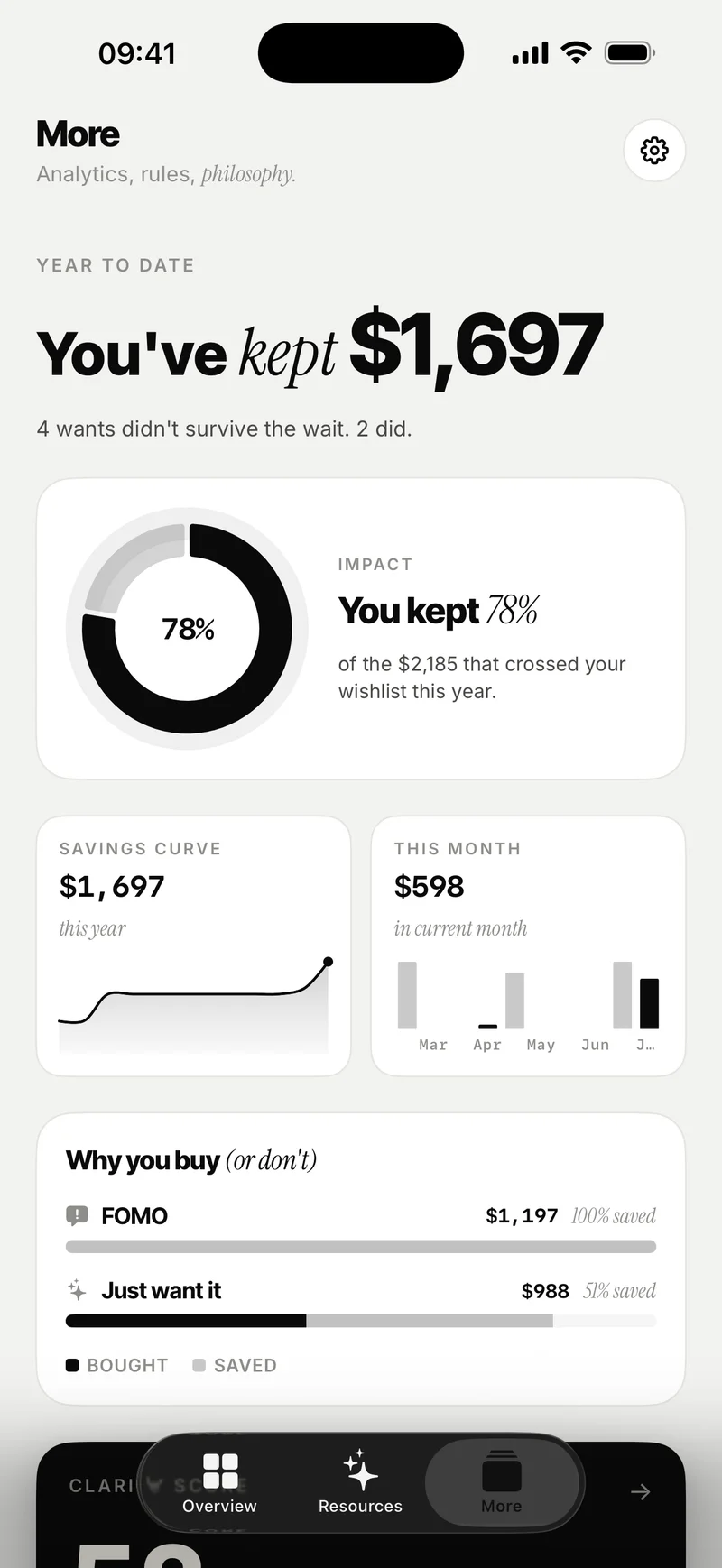
- More — Statistics, settings, customization, and account.
To make the most of CutCut on day one, do these three things:
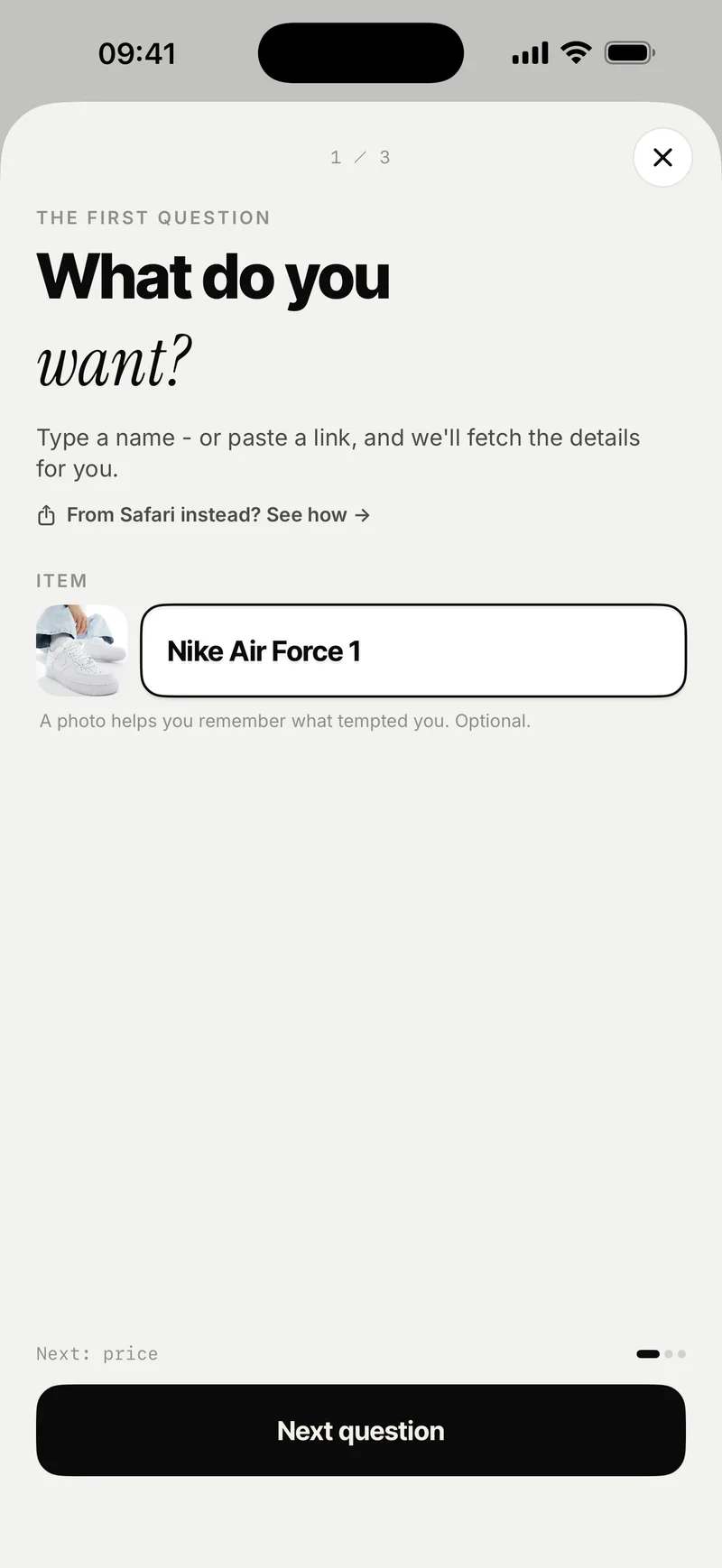
- Add your first item. Either tap the + button in the top right or share a product link from your browser or another app into CutCut.
- Try the Circuit Breaker on something you've been thinking about buying. It takes about a minute, and it's the fastest way to understand how the app thinks.
- Set up the home screen widget so your wishlist (and savings) stay quietly visible throughout your day. Long-press your home screen, tap +, and search for CutCut.
Adding Items to Your Wishlist
There are three ways to add a product to CutCut. Each one is built for a different moment.
1. Import via Share Sheet Recommended
When you find a product anywhere — Safari, Instagram, TikTok's external browser, Amazon, a small online shop — tap the system Share button and pick CutCut from the list. CutCut will read the product page's Open Graph meta-tags and automatically pull in the name, price, and image. No copy-paste, no typing, no friction.
2. Manual Entry via the Plus Button
In the top right corner of the Overview tab, you'll find a + button. Tap it to add an item by hand: enter the name, price, an optional image, and any notes. Useful for in-store products, things you saw in real life, or items from sites that don't share well.
3. Through the Circuit Breaker
If you genuinely can't tell whether you want something — or you suspect you don't but feel the pull anyway — go to the Resources tab and start a Circuit Breaker. It walks you through targeted questions designed to surface what you actually think about the purchase. If you come out the other side still wanting it, the answers you've already given are passed straight into the wishlist entry, so you don't fill anything in twice.
This is the slowest path, and that's the point. It's reserved for the items that deserve extra scrutiny.
The Waiting Period
Once an item is on your wishlist, CutCut assigns it a cooling-off period based on its price. The principle is simple: the more money is at stake, the more time you get to think. A €15 phone case might wait a couple of days. A €1,200 lens might wait a few weeks.
You can choose how strict the waiting rules are in More → Waiting Rules:
- Classic — A balanced default. Cheaper items wait shorter, expensive items wait longer, with a gentle curve.
- Hard — Stricter intervals across the board. Recommended if you've recognized that even small impulse buys add up.
- Custom — Define your own intervals from scratch. Set exact waiting durations for any price bracket you choose.
The Decision View ("Ready to Rethink")
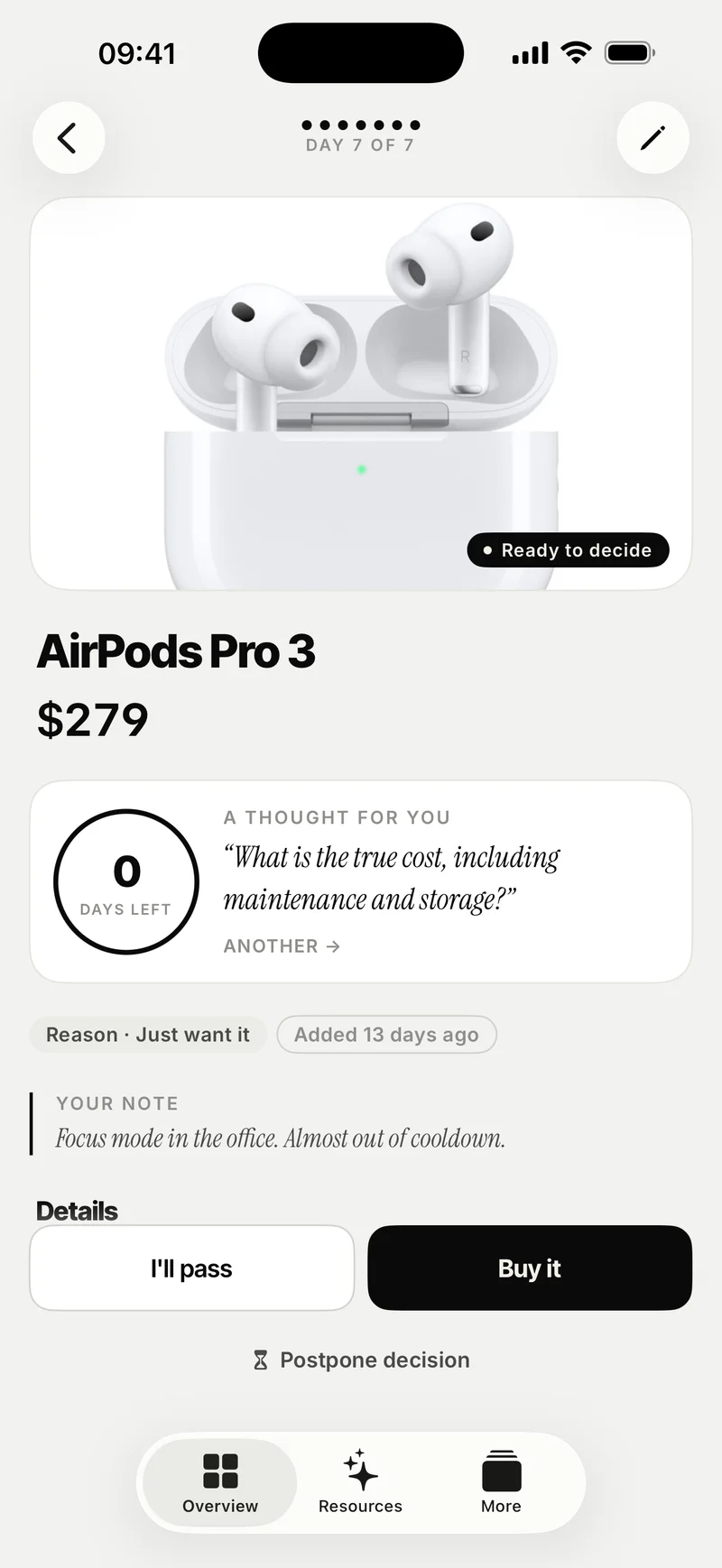
When the cooling-off period ends, the item changes status to Ready to Rethink. Open it, and you'll see the product image, the price, and two clear actions:
- Buy it — You're still convinced. Go ahead. CutCut tracks it as a deliberate purchase, not an impulse.
- I'll pass — The desire faded. CutCut tracks the price as money saved, which feeds into your statistics.
If you're genuinely undecided, there's also a More time option that pushes the decision further out. Use it when you mean it — not as a way to avoid deciding forever.
The decision view is designed to be free of distractions. There's no related-products section, no "buy now" link, no urgency banner. Just the item, the price, and you.
The Circuit Breaker
The Circuit Breaker is CutCut's most direct intervention — and arguably its most powerful. You'll find it in the Resources tab.
It's a short, structured interview with questions designed to short-circuit the part of your brain that's trying to justify the purchase. Examples:
- "A stranger offers you this product in one hand and €149 in cash in the other. Which do you take?"
- "How often will you realistically use this in the next six months?"
- "Will you remember owning this in a year?"
The answer options are deliberately uncomfortable. There's no "I'll use it sometimes" middle ground that lets you off the hook. CutCut respects your intelligence too much to let you lie to yourself in its UI.
If you finish the Circuit Breaker and still want the item, that's a meaningful signal — your wish has cleared a real bar. The data you've already entered is carried over directly into a new wishlist entry. No double work.
The Resources Tab in Depth
Beyond the Circuit Breaker, the Resources tab holds two more sections worth exploring.
Guides
A growing library of long-form articles on the psychology of consumption. They're not generic productivity blog posts — they're focused, well-researched pieces on the specific mechanisms that drive impulse purchases. Examples:
- The Psychology of Spending — Why your brain treats spending as a reward in itself.
- Dopamine & The Brain — How the anticipation of buying often feels better than the buying itself, and what to do with that information.
- Mental Defense Tactics — Concrete techniques for resisting common manipulation patterns in advertising and social commerce.
Helpful Tools (the Calculators)
Four calculators that translate price tags into something more meaningful than a number. Each one reframes the same purchase from a different angle:
- Effort Cost — How many hours of your life does this product cost? CutCut will tell you how long you'd need to work to pay for any item. The €80 sweater suddenly looks different when it's "a full Tuesday at the office."
- True Value — The real cost per use. Enter how often you realistically expect to use the item, and CutCut divides the price accordingly.
- Lost Gains — What this money could become if invested instead. CutCut runs a simple compound-growth projection over a horizon you choose.
- Alt Impact — What you could do with the same amount of money if you redirected it elsewhere — charitable donations, a learning course, an experience.
These are most powerful when you run them on something you already own and use rarely. The numbers tend to be eye-opening, and they recalibrate your sense of what a "small" purchase really costs.
Statistics & Insights
CutCut's analytics live in two places. A quick overview sits on your Overview dashboard; the full breakdown is in the More tab.
- Spent vs. Saved — Total money spent on items you decided to buy vs. total money kept by passing on items.
- Financial Impact — A chart showing your cumulative savings (or spending) over time.
- Why You Buy (Or Don't) — A breakdown of your purchasing patterns. Which categories survive the waiting period most often?
- Strongest & Most Resilient Categories — Which kinds of items consistently make it through, and which ones consistently don't.
- Best Self-Control Moments — When you're at your most disciplined.
Notifications: Pick a Voice That Suits You
CutCut sends notifications when waiting periods end. You choose the voice it speaks to you in. There are seven distinct personalities, available in More → Notifications:
| Style | Vibe |
|---|---|
| The Essentialist | Classic, neutral, clear. The default. |
| The Drill Sergeant | Direct, no sympathy. For when you need to be told. |
| The Hype Squad | Enthusiastic, motivating, on your side. |
| The Voice of Reason | Calm, analytical, gently logical. |
| Unit 01 | Technical, dry, vaguely sci-fi. |
| The Mindful Guru | Soft, present, unhurried. |
| The Sassy Wallet | Cheeky, playful, mildly judgy. |
You can switch styles whenever you want. Try a few in the first weeks to find the one that actually makes you stop and read the notification, instead of swiping it away.
Customization
CutCut adapts to you, not the other way around. Things you can change:
- Custom Waiting Rules — Define your own price-to-wait-time mappings.
- App Icons — A growing collection of alternative icons (some Premium-only).
- Languages — German, English, Spanish, Chinese, Japanese.
- Currency — Used for display and the Lost Gains calculator.
- Working Hours / Wage — Used for the Effort Cost calculator.
- Theme — Light and dark, both pure black-and-white.
Widgets & Deep Links
Home Screen Widgets
CutCut offers two widget styles:
- Money saved — A running tally of what your patience has been worth.
- Waiting items with countdown — The next item due for a decision, with a visible timer.
Both are designed as gentle daily reminders. Long-press your home screen, tap +, and search for CutCut to add them.
Deep Links
CutCut supports deep links from other apps and the browser, so you can jump straight into a specific screen — useful for shortcuts and automations. The most common use is sharing a product link from another app and landing directly in the import flow.
Tips for Getting the Most Out of CutCut
A few patterns that long-term users tend to develop:
- 1 Add liberally, decide carefully. Adding an item to CutCut is essentially free — it costs nothing, commits to nothing, and takes seconds. Use it as a reflex any time you feel a pull toward a purchase.
- 2 Don't open your wishlist constantly. If you check it daily hoping a timer will run out, you're back in impulse mode. Trust the notifications. Live your life. Come back when CutCut tells you it's time.
- 3 Review your "I'll pass" history occasionally. Seeing a list of things you almost bought but didn't — and not missing any of them — is a useful proof to yourself that the system works.
- 4 Use the calculators on things you already own. It's the fastest way to recalibrate your gut sense of what stuff is actually worth.
- 5 Don't beat yourself up over a "Buy it" decision. The failure mode is buying without thinking. If you waited and decided, you decided well — even if you decide to buy.
Frequently Asked Questions
Is CutCut connected to my bank or my shopping accounts?
Does CutCut work without an internet connection?
What happens to my data if I uninstall the app?
Can I edit a wishlist item after I add it?
What if I accidentally tap "Buy it" or "I'll pass"?
Does CutCut share or sell my data?
How is the waiting period calculated?
Can I share my savings with friends?
How do I report a bug or request a feature?
Why is the design so plain?
One Last Thing
CutCut is the only app that doesn't want you to use it more.
The longer you use it well, the less you'll need to use it at all. The goal is for the waiting reflex to become automatic — for you to feel an impulse, recognize it, and pause without needing the app to tell you to. When that happens, CutCut will quietly fade into the background of your life, and you'll have what you came here for: control over your spending, and a clearer relationship with what you actually want.
Take your time. That's the whole idea.
Last updated: April 2026 · Version 1.3